 Tutorials
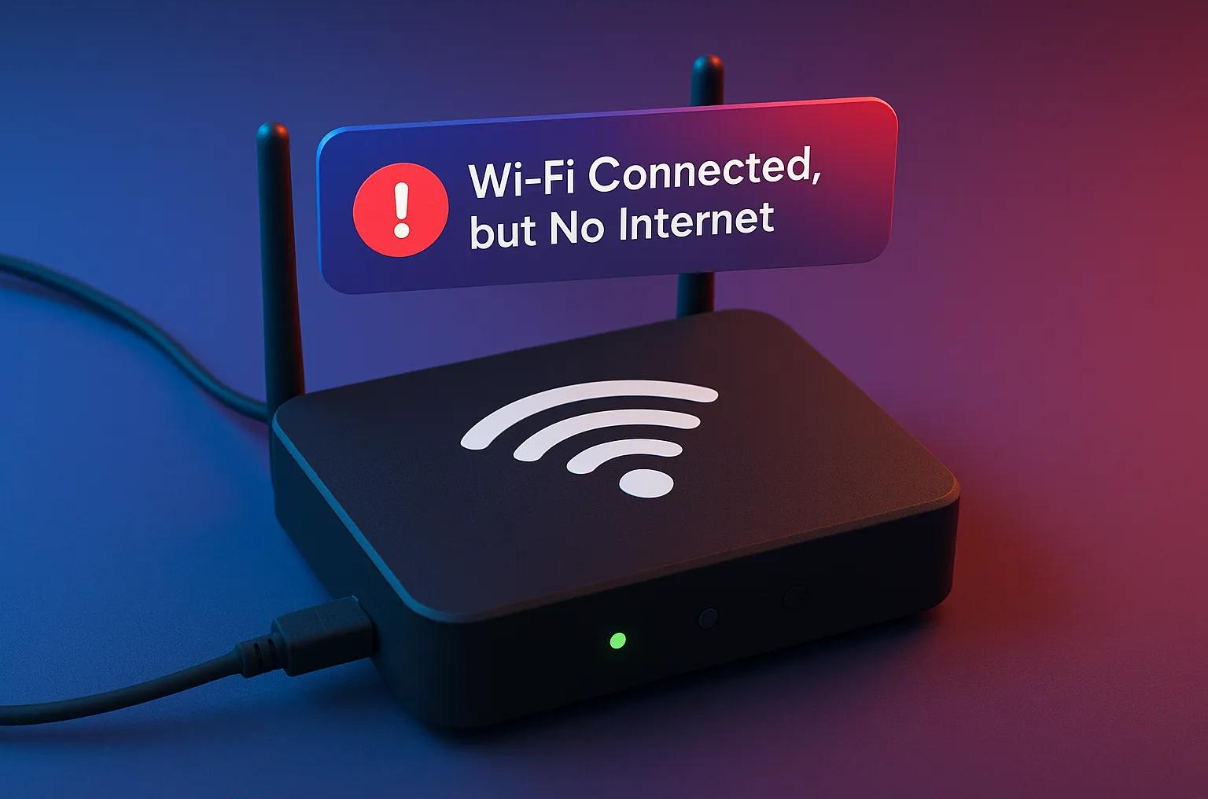
Wi-Fi Connected But No Internet? Causes & Easy Fixes
Wi-Fi Connected But No Internet? Causes & Easy Fixes
Your Wi-Fi is connected, but websites are not opening? Discover why this happens and learn simple ways to restore your internet connection.
Have you ever connected your phone, laptop or smart TV to Wi-Fi, only to discover that the internet is not working? Your device shows that it is connected to the wireless network, but websites refuse to load, apps keep buffering and online services remain unavailable.
This is a common connectivity problem. The good news is that a Wi-Fi connection without internet access does not always mean your router is damaged. It can happen because of a temporary router issue, an ISP outage, incorrect network settings, DNS problems or a device-specific error.
In this guide, we will explain the most common causes of the problem and walk you through practical troubleshooting steps to get your internet working again.
1. What Does Wi-Fi Connected But No Internet Mean?
When your device connects to Wi-Fi, it establishes a wireless connection with your router. However, this does not automatically mean that the router has an active connection to the internet.
Think of your Wi-Fi router as a bridge between your devices and your internet service provider (ISP). Your phone may successfully connect to the router, while the router itself may be unable to communicate with the internet.
Simple Example
Your phone shows full Wi-Fi signal strength, but Google does not open, YouTube keeps loading and WhatsApp messages are not being delivered. This indicates that the wireless connection may be active while internet access is unavailable.
2. Common Causes of Wi-Fi Without Internet
A. Internet Service Provider Outage
One of the most common reasons is a temporary outage at your internet service provider's end. Network maintenance, fiber cable damage, power interruptions or equipment problems can affect internet connectivity.
What to check: Contact your ISP and ask whether there is an outage or maintenance activity in your area.
B. Router or ONT Glitch
Your router or Optical Network Terminal (ONT) may occasionally stop responding correctly because of a temporary software issue, overheating or a disrupted connection.
What to check: Look at the router's Power, PON, LOS and Internet indicators. Their meanings differ by device, so consult the manufacturer's guide. A red or blinking LOS indicator on many fiber ONTs can indicate a fiber signal problem.
C. Incorrect IP Address or DHCP Problem
Your device needs a valid IP address to communicate with the router and access the internet. If the DHCP service does not assign an address correctly, your device may connect to Wi-Fi but fail to access online services.
What to check: Disconnect and reconnect to Wi-Fi. If the issue continues, restart your device and check its network settings.
D. DNS Server Problem
DNS, or Domain Name System, translates website names into IP addresses. If the DNS server is unavailable or responding incorrectly, websites may fail to open even when the network connection is active.
What to check: Try accessing multiple websites. If the issue persists, ask your ISP about DNS connectivity. Advanced users can test a trusted alternative DNS provider.
E. Too Many Connected Devices
When several phones, televisions, computers and smart devices use the same connection simultaneously, the available bandwidth can become congested. This can make browsing extremely slow or cause services to time out.
What to check: Temporarily disconnect devices that are not being used and test your connection again.
F. Device-Specific Wi-Fi Settings
Sometimes the internet works perfectly on other devices, but one phone or laptop cannot access websites. This may be caused by incorrect proxy settings, a VPN, a firewall, outdated network drivers or a saved Wi-Fi configuration problem.
What to check: Temporarily disable your VPN or proxy if enabled, then reconnect to the network.
3. Easy Fixes to Restore Your Internet Connection
Before changing advanced router settings, try these basic troubleshooting steps in order.
Fix 1: Restart Your Router and ONT
Restarting network equipment can resolve temporary connection glitches.
- Save your online work and disconnect devices if necessary.
- Switch off the router and ONT, if they are separate devices.
- Wait approximately 30 seconds.
- Switch the ONT back on and allow it to synchronize.
- Switch on the router and wait for the connection to stabilize.
- Reconnect your phone or laptop and test the internet.
Important: Do not press the factory reset button. A factory reset can erase your ISP configuration.
Fix 2: Forget and Reconnect to Wi-Fi
A saved Wi-Fi profile may sometimes cause connectivity issues.
- Open Wi-Fi settings on your device.
- Select your connected network.
- Choose Forget Network or Forget This Network.
- Search for available Wi-Fi networks again.
- Select your network and enter the correct password.
Check whether websites and apps are working again.
Fix 3: Check Whether Other Devices Have Internet
Connect another phone, laptop or smart TV to the same Wi-Fi network.
- If every device has the same issue, the problem may be with the router, ONT or ISP connection.
- If only one device is affected, check that device's network configuration.
Fix 4: Check Your DNS Settings
If DNS resolution is failing, changing to a trusted DNS resolver may help.
For example, Google's public DNS addresses are:
- Preferred DNS: 8.8.8.8
- Alternate DNS: 8.8.4.4
Change DNS only if you are comfortable with network settings. If you use ISP-managed settings, contact your provider before making changes. You can restore the previous settings if the change does not help.
Fix 5: Check VPN and Proxy Settings
A VPN or incorrectly configured proxy may interfere with internet access.
- Temporarily disconnect your VPN.
- Check whether a manual proxy is enabled.
- Disable an unexpected proxy configuration.
- Reconnect to Wi-Fi and test again.
Fix 6: Check Fiber and Network Cables
If you use a fiber broadband connection, check whether the fiber cable is visibly damaged, sharply bent or disconnected. Also check the Ethernet cable between your ONT and router.
Never look directly into a fiber-optic connector. Avoid pulling, bending or attempting to repair fiber cables yourself. Contact your broadband technician if you suspect physical damage.
4. How to Identify Whether the Problem Is Your Device or ISP
Use this simple comparison to narrow down the problem before contacting technical support.
| What You Notice | Possible Reason | What to Do |
|---|---|---|
| All devices are offline | Router, ONT or ISP issue | Check equipment and contact ISP |
| Only one device is offline | Device settings or Wi-Fi profile | Reconnect and check settings |
| LOS indicator is red | Possible fiber signal issue | Contact your fiber technician |
| Wi-Fi works but websites do not open | Possible DNS or upstream issue | Test DNS and contact ISP |
| Connection works after restart | Temporary equipment glitch | Monitor the connection |
5. Tips to Prevent Wi-Fi Connectivity Problems
Following a few simple practices can help keep your home network stable and reduce avoidable connection problems.
- Place your router properly: Keep it in a central, open location away from thick walls and large metal objects.
- Keep equipment ventilated: Avoid covering your router or placing it in an enclosed, hot space.
- Use quality equipment: Choose a router suitable for your internet plan and household requirements.
- Keep firmware updated: Install approved updates when recommended by the manufacturer or your ISP.
- Secure your Wi-Fi: Use a strong password and modern wireless security settings.
- Monitor connected devices: Check for unknown devices and unnecessary background downloads.
- Report recurring issues: Repeated disconnections may require a professional line or equipment check.
6. When Should You Contact Your Internet Service Provider?
Basic troubleshooting can resolve many problems, but some issues require technical support. Contact your ISP if:
- Your internet remains unavailable after restarting your equipment.
- The ONT displays a red or persistent LOS warning.
- All devices are connected to Wi-Fi but cannot access the internet.
- Your connection frequently disconnects throughout the day.
- You suspect a damaged fiber cable or faulty network equipment.
- You notice unusual network activity or an account-related service restriction.
When contacting support, share your account or registered number through the provider's official channel, describe the router indicator lights and explain which troubleshooting steps you have already tried. This can help the support team identify the problem faster.
7. Frequently Asked Questions
Q1. Why does my phone show Wi-Fi connected but no internet?
Your phone may be connected to the router, but the router may not have an active internet connection. ISP outages, DNS errors, IP address problems and router glitches are common reasons.
Q2. Will restarting my router fix the no-internet problem?
It can fix temporary router or connection glitches. However, it will not resolve an ISP outage, damaged fiber cable or a serious hardware fault.
Q3. Why does Wi-Fi work on one device but not another?
The affected device may have incorrect network settings, an outdated driver, VPN or proxy interference, or a saved Wi-Fi profile issue.
Q4. Does a full Wi-Fi signal mean I have internet?
No. Wi-Fi signal strength indicates the wireless connection between your device and router. It does not guarantee that the router has access to the internet.
Q5. Should I factory reset my router?
Not as a first step. A factory reset may remove ISP-specific settings and disconnect your service. Contact your provider before performing one.
Q6. What does a red LOS light mean on a fiber router or ONT?
On many fiber ONTs, a red LOS light indicates that the optical signal is missing or too weak. Check the cable visually and contact your broadband technician.
Conclusion
A Wi-Fi Connected But No Internet problem can be frustrating, especially when you need to work, study, attend online meetings or enjoy entertainment. However, the cause is often identifiable with a few simple checks.
Start by restarting your router and ONT, testing another device, checking your network indicators and reconnecting to Wi-Fi. If the issue continues, contact your internet service provider for further diagnosis.
A reliable broadband connection is about more than just Wi-Fi signal strength. It also depends on stable network equipment, a healthy fiber connection and dependable ISP support.
Need a Stable & Hassle-Free Internet Connection?
Experience high-speed fiber broadband with OneTouch Express.
Call Now: 87109 10987
OneTouch Express – The Internet You Deserve!
www.onetouchexpress.com
Disclaimer: Troubleshooting results may vary depending on your router, device, network configuration and ISP. Contact your service provider for connection-specific assistance.