 Security
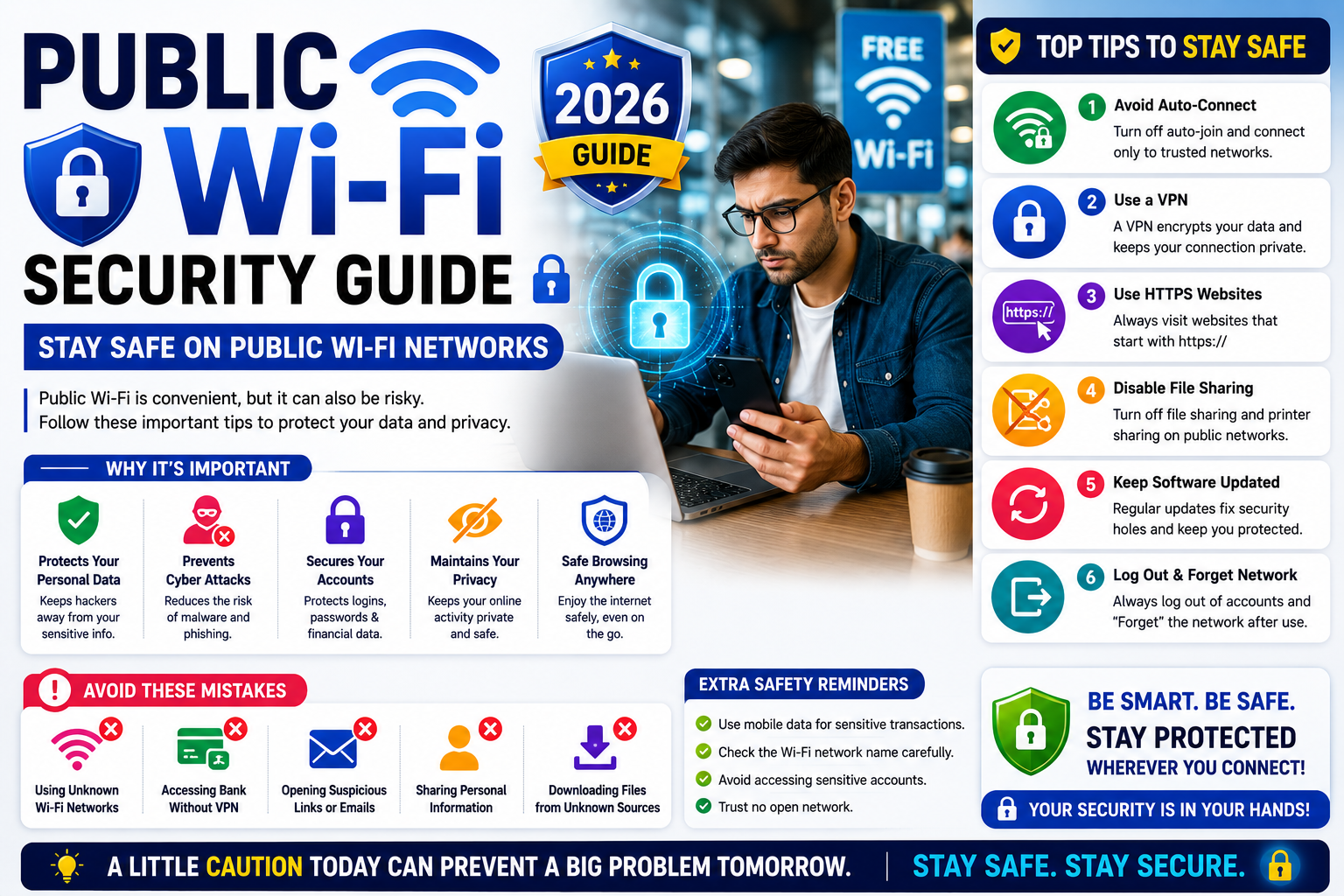
Public WiFi Security Guide (2026): Stay Safe on Public Wi-Fi Networks
Public Wi-Fi Security Guide: Stay Safe on Public Networks
Free Wi-Fi at cafes, airports, hotels, and malls is genuinely convenient — but it’s also where people get careless. The threats aren’t quite what the scare-headlines say anymore, yet real risks remain. This guide gives you an honest, up-to-date picture of what’s actually dangerous on public Wi-Fi in 2026 — and exactly how to stay safe.
The honest truth about the risks
Here’s some good news the old warnings miss: because nearly all websites now use HTTPS encryption, a random stranger can no longer simply “see everything you type” on public Wi-Fi the way they once could. That classic fear is largely outdated for normal browsing.
But public Wi-Fi is not risk-free. The real dangers in 2026 are different — and worth knowing.
• Fake “evil twin” hotspots. An attacker sets up a network named like the real one (“Free Airport WiFi”) to lure you in and intercept your traffic. This is the big one.
• Fake login/captive pages. A dodgy network can show a convincing “sign in” page designed to steal your details.
• Auto-connect traps. Your device silently joining any open network it recognises — including a malicious one with a familiar name.
• Outdated devices & unencrypted apps. Unpatched software or the occasional app that doesn’t encrypt properly can still leak data.
Bottom line: The biggest public Wi-Fi risk today isn’t snooping on your browsing — it’s connecting to a fake network in the first place.
How to stay safe: 8 practical steps
This is your best defence against fake hotspots. Ask staff for the exact official Wi-Fi name — don’t just tap the one that looks right. Be suspicious of duplicates or slightly misspelled names.
A reputable VPN encrypts all your traffic in one wrapper, so even on a sketchy network your data stays private. It’s the single most effective tool for public Wi-Fi — turn it on before you browse.
Stop your phone and laptop from silently joining open networks. Disable “auto-join” for public Wi-Fi so you always choose consciously — and never connect to an unknown network unprompted.
Look for the padlock and “https” in the address bar. Never dismiss a browser security or certificate warning on public Wi-Fi — it’s often the one sign of an attack in progress.
Two-factor authentication is your safety net. Even if a login somehow leaks, an attacker can’t get in without your second factor. Enable it on email, banking, and social accounts.
Turn off file and printer sharing on public networks (many devices offer a “public network” setting that does this automatically), and make sure your firewall is enabled.
Many attacks exploit old, unpatched software. Keeping your OS, browser, and apps current closes the holes that public-network attackers rely on.
Banking or important logins? Your mobile data or personal hotspot is safer than any public network. When in doubt, switch off the Wi-Fi and use your own connection.
When you’re done: forget the network
After you leave, tell your device to “forget” the public network so it won’t auto-reconnect next time you’re nearby — or worse, connect to a fake one using the same name. It takes two taps and closes a common loophole.
✓ Confirm the exact network name with staff
✓ VPN on before browsing
✓ Auto-connect turned off
✓ HTTPS only — heed security warnings
✓ 2FA enabled on key accounts
✓ Sensitive tasks on mobile data, not public Wi-Fi
Frequently asked questions
Less than it used to be, thanks to HTTPS — but not safe. The main risks now are fake networks and fake login pages, so caution still matters.
It’s the strongest single safeguard on public Wi-Fi, adding a layer of encryption and privacy. Highly recommended if you use public networks often.
Better not to. If you must, use a VPN — but switching to mobile data for banking is the safer choice.
Watch for duplicate or oddly-named networks, ones with no password where you’d expect one, and unexpected login pages. When unsure, confirm the real name with staff.
Connect smart, not scared.
Public Wi-Fi is fine to use when you take a few simple precautions — verify the network, switch on a VPN, keep 2FA on, and save the sensitive stuff for your own connection.